

Files
Organize files into folders
Group the decks, sheets, and files in a space into folders.
Create a folder
-
Click Documents in the left sidebar and open the space.
-
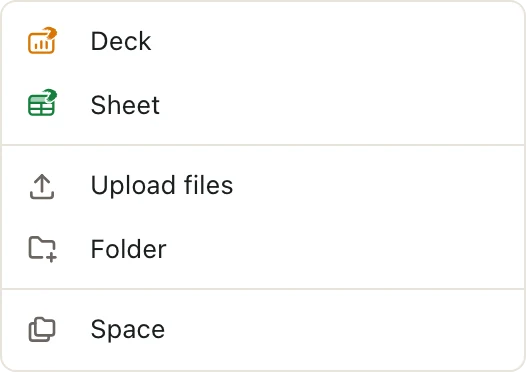
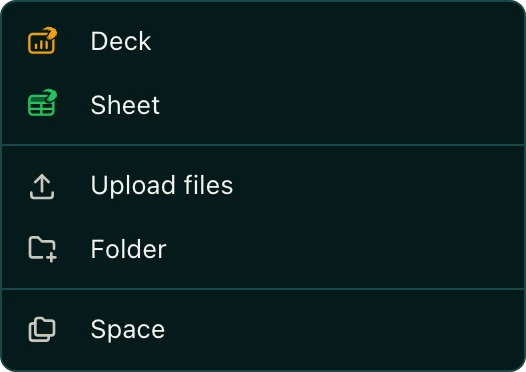
Click New, then Folder.
-
Type a Folder Name.
-
Under Location, pick the space or folder to put it in.
-
Click Create.
You can also right-click a space or folder in the list on the left and choose New, then Folder. Type a name and press Enter.
To put things in the folder, see Move a file to another space. The same steps work for moving between folders.
Rename or delete a folder
Right-click the folder in the list on the left:
- Rename lets you type a new name. Press Enter to save.
- Delete asks you to confirm, then deletes the folder.
Deleting a folder deletes what's inside
Every deck, sheet, file, and folder inside it is deleted too. You can't undo this. Move anything you want to keep out of the folder first.
Good to know
- Access is set on the space, not the folder. Everyone who can open the space can open every folder in it.
- Admins and Editors can create and rename folders.
- Only space Admins can delete folders. In spaces for Everyone at your firm, only organization admins can.
- You can't delete a folder while Pitchcrow is working on a deck or sheet in it, or while a deck in it is still being built from a PowerPoint. Wait for it to finish, then try again.