

Search for a deck, sheet, or file
Find a document by its name or by the words inside it, in one space or across every space.
Search on the Documents page
-
Click Documents in the left sidebar.
-
Choose where to search in the list on the left. Click a space to search just that space. Click All Documents to search every space you can open.
-
Type in the search box at the top.
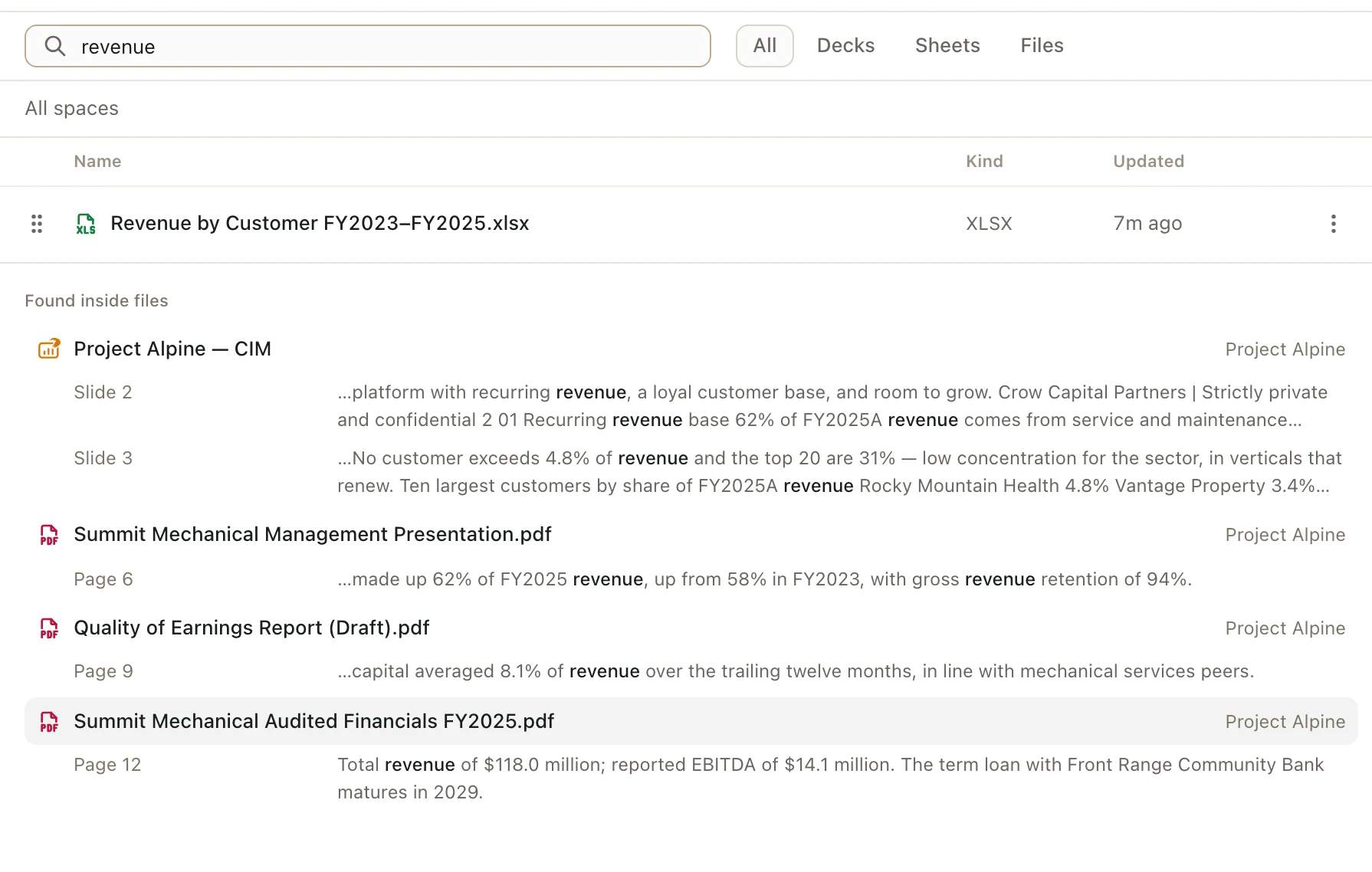

As you type, the list shows the decks, sheets, and files whose names match.
Below them, Found inside files lists documents that have your words inside them. Each one shows up to two matching passages and where they are, like "Page 12", "Slide 4", or a sheet tab and row. Click a passage to open the document right at that spot: the PDF page, the slide, or the cell.
Found inside files shows 20 documents at first. Click Show more at the bottom to see more.
To show only one kind of document, click Decks, Sheets, or Files next to the box. Click All to show everything again.
Search from anywhere
-
Press CommandKCtrlK on any page.
-
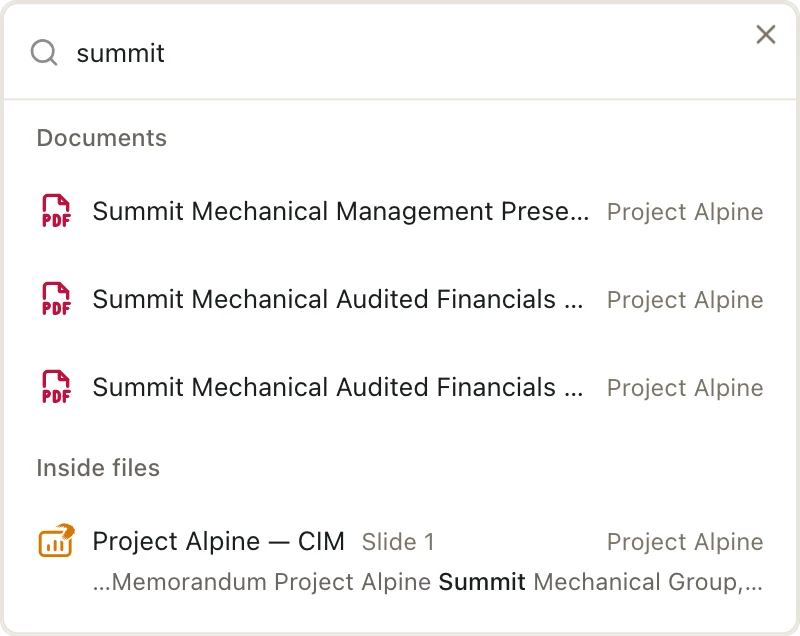
Type a few words.

-
Click a result to open it.
The results include documents whose names match, documents with your words inside them, and spaces whose names match. Each result shows which space it's in.
If there are more results than fit, click See all results at the bottom. It opens the full search on the Documents page.
Before you type anything, the search window lists the documents you opened most recently.
How words are matched
- You can type just the start of a word. "ebit" finds "EBITDA".
- Every word you type must be there, but in any order. "alpine model" finds "Project Alpine Operating Model".
- Search finds the words you typed, not other words that mean the same thing. To find something by meaning, ask Pitchcrow in the chat. It can search the files in your space by meaning.
Good to know
- Search reads uploaded files, like PDFs, Word files, and spreadsheets. It also reads the decks and sheets you make in Pitchcrow, including slide text, speaker notes, and the values in cells.
- After you edit a deck or sheet, the new text shows up in search a few seconds after you stop.
- An uploaded file shows up only after Pitchcrow has finished reading it. See Upload files.
- In a space, names are matched only in the folder you have open. Words inside files are found anywhere in the space.
- You only see results from spaces you can open.