

Sharing
Leave, resolve, or delete a comment
Pin comments to a deck or sheet, reply to them, and close them out when they're done.
Leave a comment on a deck
- Open the deck.
- Click Comment in the toolbar. On a Mac, you can press C instead.
- Click the spot on the slide you want to comment on.
- Type your comment and press Enter.
You can also right-click a slide or anything on it and choose Add comment.
Leave a comment on a sheet
- Select the cells you want to comment on.
- Right-click them and choose Comment. Or press CommandOptionMCtrlAltM.
- Type your comment and press Enter.
Reply, resolve, or reopen
Click a comment to open it.
- To reply, type in the Reply box and press Enter.
- To mark it done, click Resolve, the check mark at the top of the comment.
- To bring back a resolved comment, click the check mark again. It now says Reopen.
See all comments
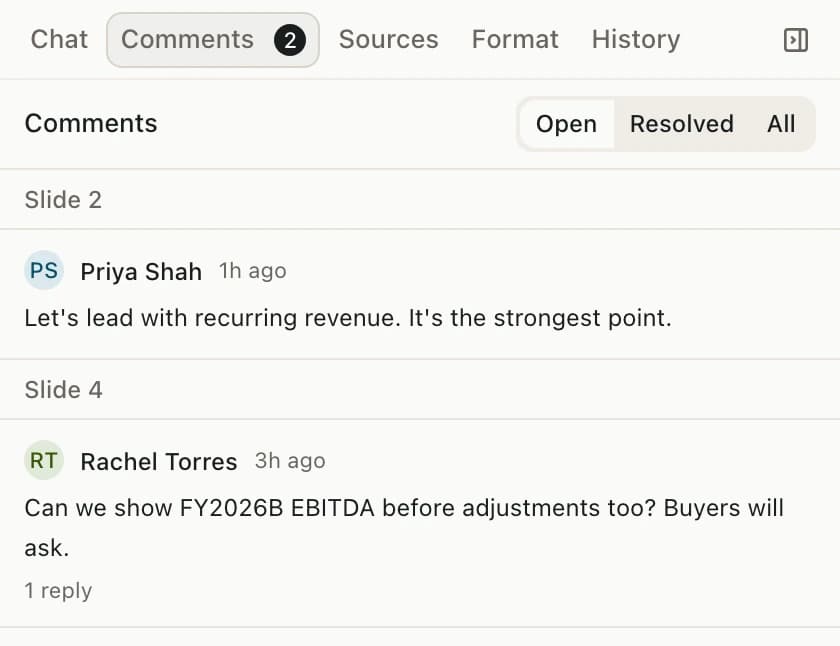
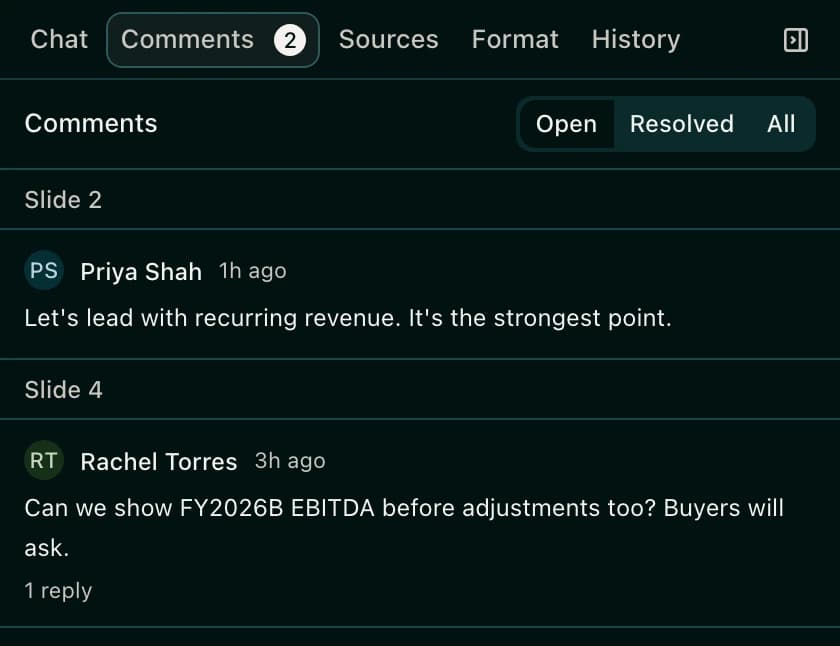
Open the Comments tab on the right. It lists every comment, grouped by slide or sheet. Pick Open, Resolved, or All to choose which ones show.
In a deck, you can hide the comment pins on your slides. Click Hide comments, the speech bubbles button in the bottom-right corner of the slide area. Click it again to show them.
Edit or delete a comment
- To edit your comment, point at it and click Edit comment. Press Enter to save.
- To delete a reply you wrote, point at it and click Delete comment, then Confirm.
- To delete the whole comment and all its replies, click Thread options at the top, choose Delete thread, then Confirm delete.
Good to know
- Anyone who can open the space can comment, including Viewers.
- Admins and Editors can resolve or reopen any comment. Viewers can resolve or reopen only the comments they started.
- You can only edit or delete your own comments. Only the person who started a comment can delete the whole thing.
- Comments left on a published version show up on the live document too.
- Pitchcrow can work through comments for you. See Ask Pitchcrow to fix comments.