

Restore an older version
Look back at how a deck or sheet used to be, and bring back all of it or just one slide.
Pitchcrow saves every change to a deck or sheet as you go. You can look at any earlier point and go back to it.
-
Open the deck or sheet.
-
Open the History tab on the right. It lists every change, newest first, with who made it and when. Everything one Pitchcrow request changed shows as a single entry.
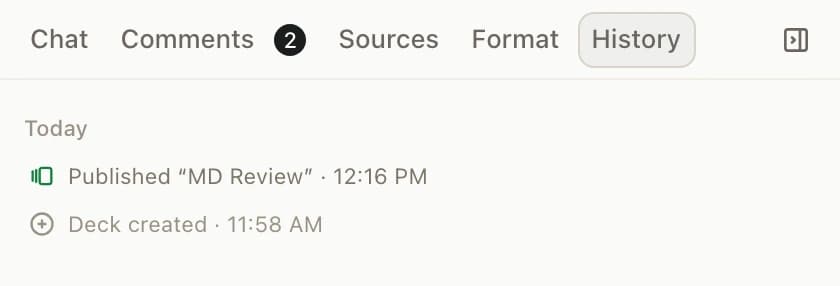

-
Click an entry to see the document as it was then. A bar at the top tells you how many slides or sheets are different from now.
-
Click Restore this version in that bar, then Restore version to confirm.
You can also click Version actions next to an entry and choose Preview this version or Restore this version.
To stop looking at an old version without restoring it, click Exit preview in the bar.
Restore just one slide
- In a deck, click an entry in History to look at that version.
- In the slide list, point at a slide that's different from now and click Restore.
- Click Restore slide to confirm.
Only that slide goes back. The rest of the deck stays as it is.
Undo everything Pitchcrow did in one request
Click Version actions next to a Pitchcrow entry and choose Revert this run's changes. Then click Revert changes. Everything that request changed goes back to how it was before. If someone edited the same things since then, Pitchcrow warns you that reverting will undo those edits too.
Good to know
- Nothing is lost when you restore. The restore shows up in History as a new change, so you can undo it or go back to an earlier entry.
- When you publish a version, it's marked in History with its name.
- Anyone who can open the space can look at History. Only Admins and Editors can restore.