

Decks
Add a table
Put a table on a slide, change its rows and columns, or fill it with cells copied from Excel.
-
Open the deck and go to the slide.
-
Click the Table button Table in the toolbar.
-
Move your mouse over the grid to pick a size, like 4 × 3. The size shows under the grid.

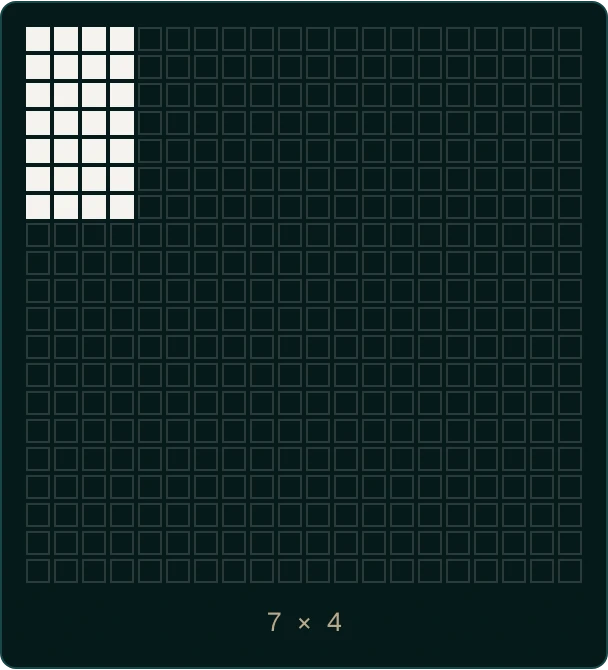
-
Click to add the table.
Tables can start at up to 20 rows by 20 columns. Click a cell and type to fill it in.
Add or remove rows and columns
Right-click a cell in the table, then choose:
- Insert row above or Insert row below
- Insert column left or Insert column right
- Delete row or Delete column
- Delete table to remove the whole table
Or select the table and click the Format options button Format options at the right end of the toolbar. Under Table:
- Add row and Add column add one at the bottom or right edge.
- Remove row and Remove column take one off the bottom or right edge.
Fill a table with cells copied from Excel
- In Excel or Google Sheets, select the cells and copy them.
- In Pitchcrow, select the table and click the Format options button Format options.
- Under Table, click Paste TSV. A Table Data panel opens.
- Delete the sample text in the box, then paste your cells.
- Click Apply.
The first row you paste becomes the table's header row.
Apply replaces the whole table
Everything in the table is swapped for what you pasted. Rows and columns change to match the pasted cells.
Good to know
- You need to be an Admin or Editor of the space to add or change tables. See Space roles.
- A table always keeps at least one row and one column.