

Add, copy, reorder, or delete slides
Change the slides in a deck from the slide list on the left.
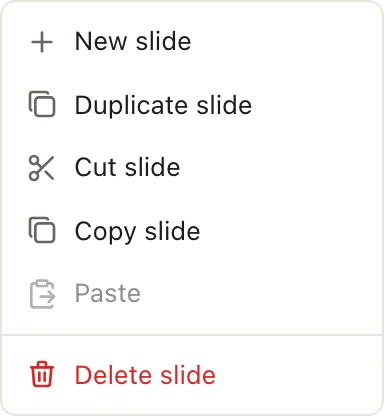
The slide list runs down the left side of the deck. Right-click any slide to see what you can do with it.
Add a slide
- Click New slide at the left end of the toolbar. The new slide goes right after the one you're on.
- Or right-click a slide and choose New slide. The new slide goes right after it.
- Or click the thin gap between two slides in the list. A line shows where the slide will go. Press Enter to add it there.
Copy or duplicate a slide
Right-click a slide, then choose:
- Duplicate slide to put a copy right after it.
- Copy slide, then right-click where you want it and choose Paste.
Move a slide
Drag the slide up or down in the list and drop it where you want it.
To move a slide to a spot far away, right-click it and choose Cut slide. Then right-click the slide it should follow and choose Paste.
Delete a slide
Right-click the slide and choose Delete slide.
Deleted one by mistake? Click Undo in the toolbar to bring it back.
Work on several slides at once
- Hold ShiftShift and click to pick a run of slides.
- Hold CommandCtrl and click to add or remove single slides.
Then right-click any of the picked slides. The menu acts on all of them, like Duplicate slides or Delete slides.
Keyboard shortcuts in the slide list
Click a slide in the list first, so the keys act on slides and not on the slide's contents.
| To do this | Press |
|---|---|
| Duplicate the picked slides | CommandDCtrlD |
| Copy, cut, or paste slides | CommandCCtrlC, CommandXCtrlX, CommandVCtrlV |
| Move the picked slides up | CommandUp arrowCtrlUp arrow |
| Move the picked slides down | CommandDown arrowCtrlDown arrow |
| Delete the picked slides | Delete |
| Pick every slide | CommandACtrlA |
For more, see Keyboard shortcuts and KeyTips.
Good to know
- You need to be an Admin or Editor of the space to change slides. See Space roles.
- You can't delete or cut a slide while Pitchcrow or a teammate is working on it. Wait for them to finish, then try again.
- You can't duplicate a slide that Pitchcrow is still writing.