

Keyboard shortcuts and KeyTips
Work faster in a deck with keyboard shortcuts, and run commands with PowerPoint-style key sequences.
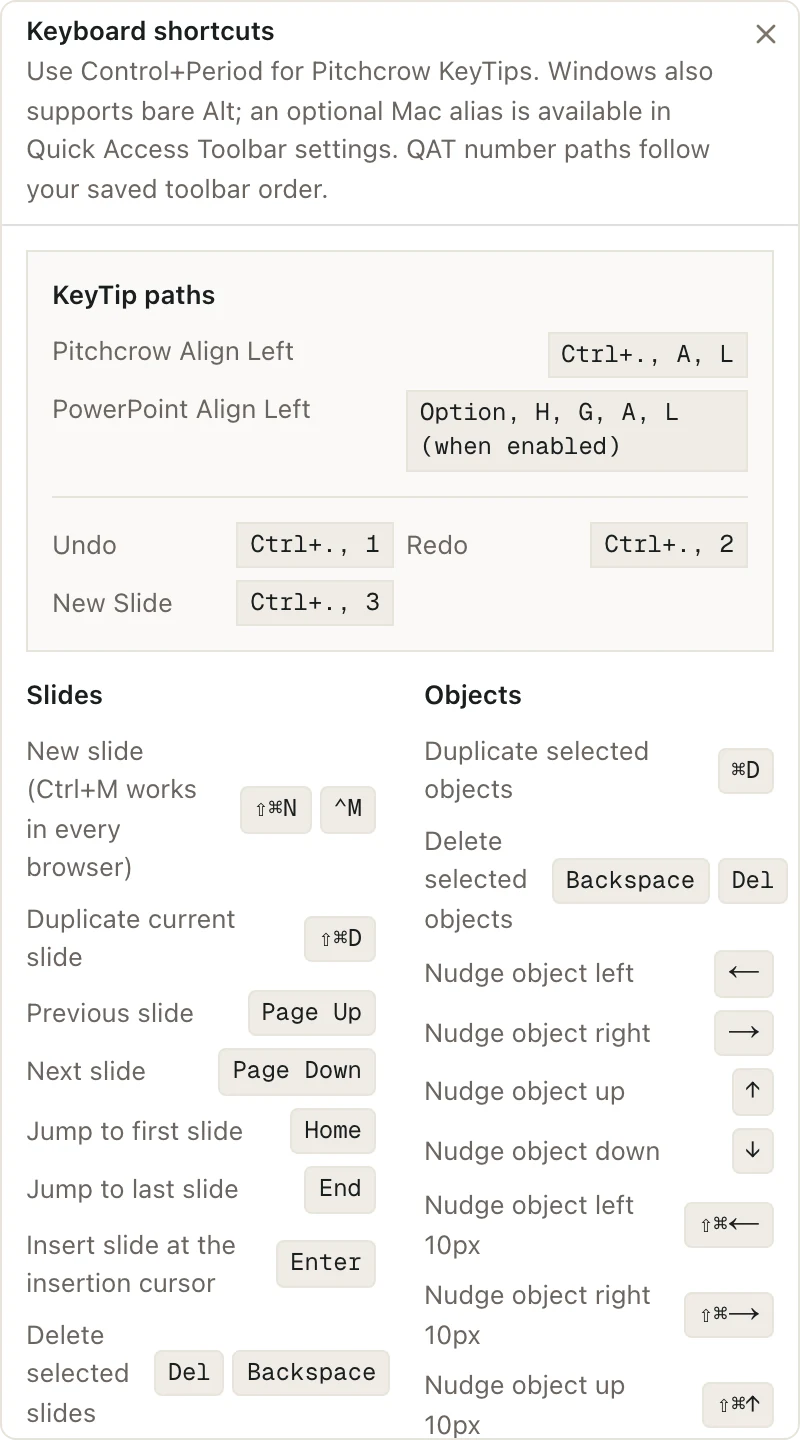
To see every shortcut, open a deck and press Command/Ctrl/. You can also press ?.
Shortcuts you'll use most
These work in the deck editor. Shortcuts are shown for the computer you pick at the bottom of the sidebar.
| To do this | Press |
|---|---|
| Show all shortcuts | Command/Ctrl/ |
| Search all your documents and spaces | CommandKCtrlK |
| Start a new chat with Pitchcrow | CommandShiftOCtrlShiftO |
| Undo | CommandZCtrlZ |
| Redo | CommandShiftZCtrlShiftZ or ControlYCtrlY |
| Find | CommandFCtrlF |
| Find and replace | CommandShiftHCtrlH |
| New slide | ControlMCtrlM |
| Duplicate the current slide | CommandShiftDCtrlShiftD |
| Next or previous slide | Page Down / Page Up |
| First or last slide | Home / End |
| Copy, cut, or paste | CommandCCtrlC, CommandXCtrlX, CommandVCtrlV |
| Duplicate what's selected | CommandDCtrlD |
| Delete what's selected | Delete |
| Nudge what's selected | An arrow key |
| Nudge it farther (10 pixels) | CommandShiftCtrlShift and an arrow key |
| Make it wider, narrower, taller, or shorter | ShiftShift and an arrow key |
| Rotate it 15° | OptionLeft arrowAltLeft arrow / OptionRight arrowAltRight arrow |
| Group or ungroup | CommandGCtrlG / CommandShiftGCtrlShiftG |
| Bring to front or send to back | CommandShiftFCtrlShiftF / CommandShiftBCtrlShiftB |
| Edit the text in a selected box | Enter or F2 |
| Align text left, center, or right | CommandLCtrlL, CommandECtrlE, CommandRCtrlR |
| Make text bigger or smaller | CommandShift.CtrlShift. / CommandShift,CtrlShift, |
| Stop editing, or clear the selection | Esc |
You can also add a shape with one key when you're not typing: T for a text box, R for a rectangle, O for an oval, L for a line, and A for an arrow.
For shortcuts in the slide list, see Add, copy, reorder, or delete slides.
KeyTips
KeyTips let you run a command by pressing a key to start, then a few letters, one at a time. They work like KeyTips in PowerPoint. You don't hold the keys down together.
For example, to line up the selected shapes along their left edges, press Control.Alt., then A, then L.
When KeyTips are on, a small box at the top of the screen shows the keys you've pressed and the keys you can press next. Press Esc to go back one key, or to stop.
| After the start key | What it does |
|---|---|
| A then L / C / R | Line up left edges, centers, or right edges |
| A then T / M / B | Line up tops, middles, or bottoms |
| A then H / V | Space shapes out evenly across, or up and down |
| G then G | Group |
| G then U | Ungroup |
| A number | Run that button in the quick access toolbar |
The quick access toolbar is the row of buttons above the main toolbar. Its first nine buttons get the numbers 1 to 9, in order. To change which buttons are there, right-click the row and choose Customize Quick Access Toolbar.
PowerPoint KeyTips
If your hands already know PowerPoint's key paths, you can use those too.
Press and let go of OptionAlt, then type the PowerPoint path. For example, OptionAlt, H, G, A, L lines up left edges, just like in PowerPoint.
PowerPoint KeyTips are off at first on a Mac, because the Option key also types letters like é. To turn them on:
- Right-click the quick access toolbar and choose Customize Quick Access Toolbar.
- Under KeyTips, pick ⌥ then slot to start KeyTips with Option. Or pick ⇧⌥ then slot to use Shift and Option, so Option alone still types letters like é.
- Click Done.
Good to know
- KeyTips don't work while you're typing in a box or while a window is open.
- Your KeyTip setting on a Mac is saved to your account, so it follows you to every deck.
- Changing slides and their contents needs Admin or Editor access to the space. See Space roles.