

Insert, delete, hide, or resize rows and columns
Add or remove rows and columns in a sheet, tuck some out of sight, and change their size.
Most of this happens with a right-click on the row numbers down the left side, or on the column letters across the top. Click a number or letter to select the whole row or column. Drag across several to select more than one.
Insert rows or columns
-
Select a row or column next to where you want the new ones.
-
Right-click the row number or column letter.
-
Choose one:
- For rows: Insert rows above or Insert rows after.
- For columns: Insert cols left or Insert cols right.
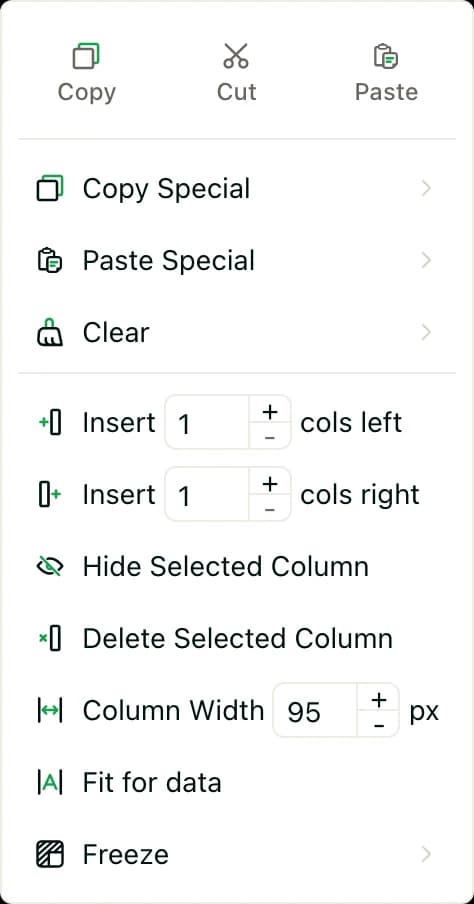
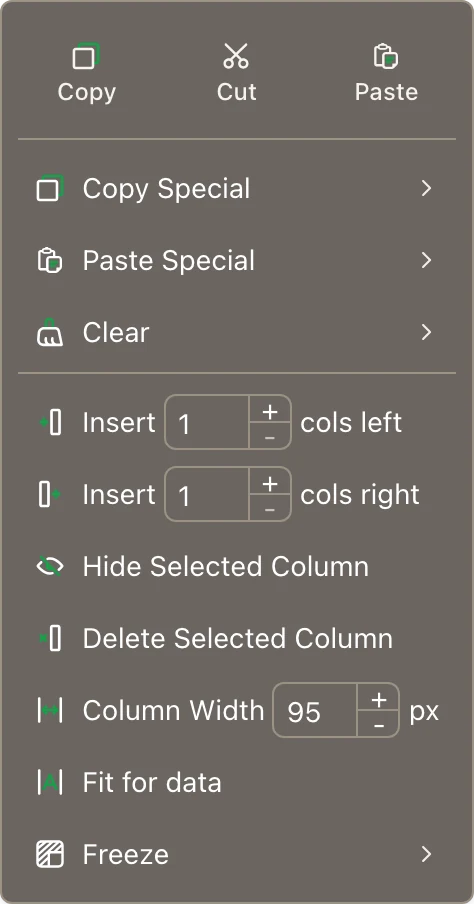
Each choice has a box for how many to add. It starts at the number you selected. Type a different number first if you want more or fewer.
You can also right-click any cell and choose Insert. From there you can add a row above or a column to the left, or push cells right (Move Right) or down (Move Down) to open up space.
Delete rows or columns
- Select the rows or columns.
- Right-click them and choose Delete Selected Row or Delete Selected Column.
To delete just some cells, right-click them and choose Delete. Then choose Move Left or Move Up to say how the cells around them close the gap.
Hide or show rows or columns
- To hide, select the rows or columns, right-click, and choose Hide Selected Row or Hide Selected Column.
- To show them again, select the rows or columns on both sides of the hidden ones. Right-click and choose Show Hide Row or Show Hide Column.
Make columns wider or rows taller
- Drag the edge between two column letters, or between two row numbers.
- Double-click the edge between two column letters to fit the column to what's in it.
- Type a size. Right-click the column letters or row numbers. Type a number in Column Width or Row Height, then press Enter. Sizes are in pixels.
- Fit to what's in it. Right-click and choose Fit for data.
The toolbar has the same choices. Select cells, click Resize rows and columns, and pick Fit column width, Fit row height, or type a Column width or Row height, then press Enter.
Good to know
- A new sheet starts with 100 rows and 26 columns, A to Z. Insert more rows or columns when you need them. Pasting past the last row or column adds more for you.
- You can't delete or hide every row or column in a tab. At least one has to stay.
- Hidden rows and columns are hidden for everyone who opens the sheet.
- To keep header rows in view while you scroll, see Freeze rows or columns.
- You need to be an Admin or Editor of the space to change a sheet. See Space roles.