

Add, rename, copy, hide, or delete tabs
Split a sheet into tabs, like one for assumptions and one for the model, and keep them in order.
A sheet can have many tabs, like "Assumptions", "Model", and "Comps". The tabs sit in the bar along the bottom of the grid. Click a tab to open it.
Add a tab
Click Add sheet at the bottom-left corner of the sheet. A new, empty tab opens.
Rename a tab
-
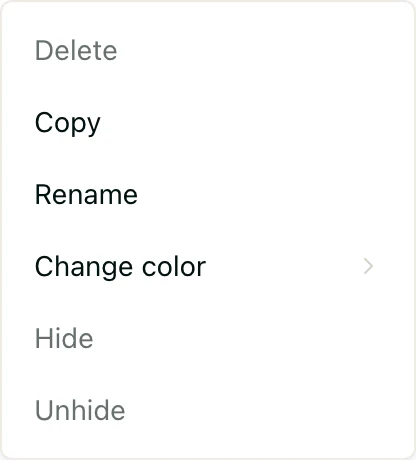
Double-click the tab. Or right-click it and choose Rename.
-
Type the new name and press Enter.
Copy a tab
Right-click the tab and choose Copy. A new tab opens with everything from the first one: values, formulas, and formatting.
Reorder tabs
Press and hold a tab, then drag it left or right.
Color a tab
Right-click the tab, point at Change color, and pick a color.
Hide or show a tab
- To hide a tab, right-click it and choose Hide.
- To show it again, right-click any tab and choose Unhide. A list of every tab opens. Click the hidden one.
Delete a tab
- Right-click the tab and choose Delete.
- In Delete worksheet, click OK.
Changed your mind? Press CommandZCtrlZ to undo. Undo only covers changes you made since you opened the sheet. After that, you can restore an older version of the sheet.
Good to know
- Tab names must be different from each other, even in capital and small
letters: "Model" and "model" count as the same. They can be up to 31
characters. They can't use
! [ ] : \ ? * /, because formulas couldn't point at the tab. They can't start or end with'. Press Esc to stop renaming. - A sheet always keeps at least one tab you can see, so you can't delete or hide the last one.
- Tab colors and hidden tabs are the same for everyone who opens the sheet.
- Pitchcrow can add, rename, and reorder tabs for you too. See Where to use Pitchcrow.
- You need to be an Admin or Editor of the space to change tabs. See Space roles.